How to Format and Validate JSON Online (Without Sending It to a Server)
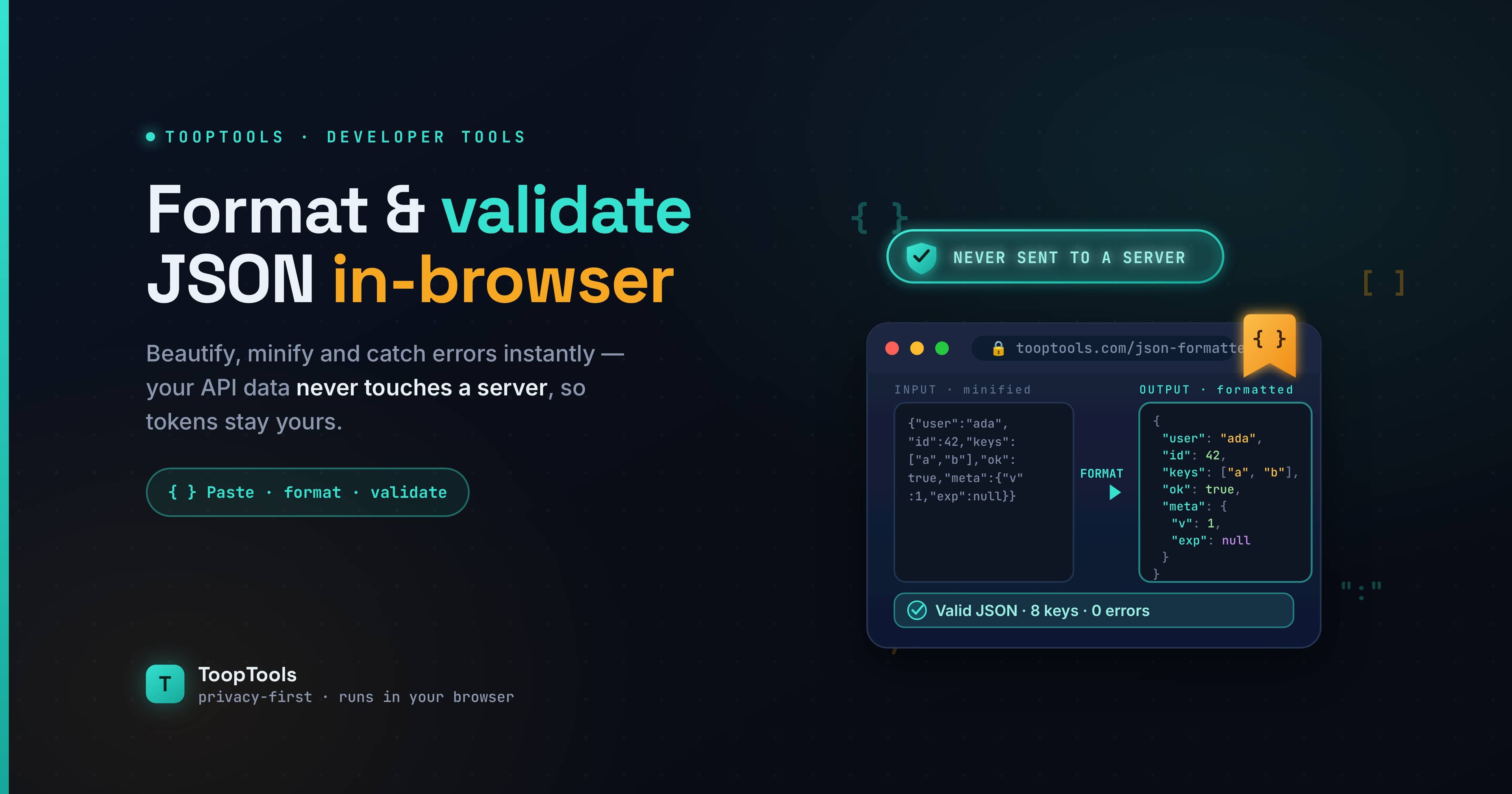
If you write code, you deal with JSON constantly. It's the language APIs speak, the format config files use, and the shape most data travels in across the modern web. And almost as constantly, you deal with JSON that's unreadable — a single minified line stretching off the side of your screen, or a response you're sure is malformed but can't quite see where.
That's where formatting and validating JSON comes in. Formatting (or "beautifying") turns a dense blob into clean, indented, readable structure. Validating checks whether the JSON is actually well-formed and points you to the exact spot where it broke. Both are everyday tasks, and there are plenty of free online tools to do them.
But there's a catch worth pausing on: a lot of those tools send whatever you paste to their servers. And the JSON developers paste is frequently the sensitive kind — API responses carrying access tokens, payloads with customer data, configs with secrets. This guide covers how to format and validate JSON properly, how to fix the most common errors, and how to do all of it in your browser so your data never leaves your machine. Whether you're a beginner trying to make sense of an API response or an experienced developer who just wants a fast, private formatter, the essentials are the same.
What formatting and validating JSON actually means
It helps to separate the two jobs, because they solve different problems.
Formatting changes only the whitespace, not the data. A minified JSON string crams everything onto one line with no spaces to save bytes — great for machines, miserable for humans. A formatter re-indents it with consistent spacing and line breaks so the structure becomes obvious: you can see the nesting, match brackets, and actually read the thing. The reverse, minifying, strips the whitespace back out when you want the smallest possible payload.
Validating checks whether the JSON follows the rules of the format at all. JSON is strict: every key must be in double quotes, no trailing commas are allowed, brackets and braces must match, and strings can't contain certain unescaped characters. A validator parses your input and either confirms it's well-formed or tells you exactly where and why it failed — which is far faster than hunting for a missing comma by eye.
Good tools do both at once: they format valid JSON instantly and pinpoint the exact line and reason when it's invalid, so you're never left guessing.
How to format JSON, step by step
The process takes seconds.
- Open a JSON formatter. Use one that works in your browser, like the JSON formatter on ToopTools, so your data is processed locally rather than uploaded.
- Paste your JSON. Drop in the minified or messy JSON you want to clean up — an API response, a config snippet, anything.
- Format it. The tool re-indents the JSON into clean, readable structure instantly. If the JSON is invalid, it flags the problem so you can fix it.
- Copy the result. Take the beautified JSON back to your editor, your documentation, or wherever you need it.
The same tool typically lets you go the other way too — minifying formatted JSON back into a compact single line when you need the smallest payload for a request or to embed it somewhere.
How to validate and fix common JSON errors
Most "invalid JSON" comes down to a handful of recurring mistakes. Once you know them, you can fix them in seconds — and a validator will point you straight at them.
Trailing commas. JSON does not allow a comma after the last item in an object or array. {"a": 1, "b": 2,} is invalid — that comma after 2 has to go. This is probably the single most common JSON error, because many programming languages do allow trailing commas, so the habit carries over.
Single quotes instead of double quotes. JSON requires double quotes around both keys and string values. {'name': 'value'} is invalid; it must be {"name": "value"}. JavaScript object literals allow single quotes, which trips people up constantly.
Unquoted keys. Every key must be a quoted string. {name: "value"} is valid JavaScript but invalid JSON — it needs to be {"name": "value"}.
Mismatched or missing brackets and braces. An object that opens with { must close with }, and arrays with [ and ]. A single missing or extra bracket invalidates the whole document, and these can be genuinely hard to spot by eye in a large file — which is exactly where a validator earns its keep.
Unescaped special characters. Characters like double quotes, backslashes, and newlines inside a string must be escaped (\", \\, \n). An unescaped quote inside a string value ends the string early and breaks everything after it.
Comments. JSON has no comment syntax of any kind. // like this or /* this */ will make a JSON document invalid, even though they're perfectly harmless in code.
When a validator flags an error, it usually gives you a line or position. Jump there, check it against this list, and the fix is almost always one of the above.
A quick refresher: what is JSON?
JSON — JavaScript Object Notation — is a lightweight, text-based format for storing and exchanging structured data. Despite the name, it's used far beyond JavaScript; nearly every programming language reads and writes it, which is why it became the default way services pass data to one another.
Its structure is simple. Data lives in key–value pairs inside objects (wrapped in curly braces {}), and ordered lists live in arrays (wrapped in square brackets []). Values can be strings, numbers, booleans, null, or further nested objects and arrays. That nesting is what makes JSON powerful — and also what makes a complex, minified document so hard to read without formatting. A deeply nested response squeezed onto one line is technically valid but practically impossible for a human to parse, which is the whole reason beautifying it matters.
When you'll actually need to format or validate JSON
A few everyday situations bring this up again and again. You're debugging an API and the response comes back minified, so you format it to see what fields you're actually getting. You're writing documentation and want to include a clean, readable example payload. You're editing a config file by hand and need to confirm it's still valid before your app chokes on it. You copied JSON from a log or a network tab and it's a wall of text you need to make sense of. Or you're building a request body and want to validate it before sending, so a trailing comma doesn't cost you twenty minutes of confusion.
In every one of these, formatting and validating turns guesswork into certainty — you see the structure clearly, and you know the JSON is well-formed before it causes a problem somewhere harder to debug.
Why formatting JSON in your browser matters
It's tempting to treat a JSON formatter as harmless — it's just text, after all. But think about what that text often contains. A typical API response you'd paste in to read might include bearer tokens, API keys, session identifiers, email addresses, names, or other personal data. Configuration files hold database credentials and secrets. This is some of the most sensitive material in your whole codebase, and pasting it into a server-side tool means a copy of it lands somewhere you don't control.
A browser-based JSON formatter avoids that entirely. Because the formatting and validating happen in JavaScript on your own machine, your JSON is never uploaded, logged, or stored — there's no server in the loop to receive it. You can beautify a production response full of tokens, confident it stayed on your device. If you want to verify, open your browser's developer tools, switch to the Network tab, and format some JSON; if nothing is sent, the tab stays empty. For data this sensitive, that's not a minor detail — it's the reason to choose a client-side tool in the first place.
A few tips for working with JSON
Format early when debugging — staring at minified JSON trying to understand a bug is a waste of effort; beautify it first and the structure (and often the problem) becomes obvious. Use the validator as a first step when something downstream breaks, since malformed JSON is a surprisingly common root cause. When you're copying JSON into documentation or a ticket, format it for readability; when you're putting it into a request body or a constrained field, minify it to save space. And if you're frequently converting related values — encoding a piece of JSON as base64 for a token, say, or switching field names between cases — keep a base64 encoder and a case converter handy alongside your formatter, since these tasks tend to cluster together.
Keep your dev tools in one place
JSON work rarely happens in isolation — you're formatting a response, decoding a token, hashing a value, generating a test ID. Bouncing between separate websites for each breaks your focus. A tidier approach is to pin the tools you use most into a single workspace, so your formatter, encoder, and the rest are all a click away and all run privately in your browser. Set it up once and your everyday dev toolkit is always ready.
Frequently asked questions
How do I format JSON online?
Paste your JSON into a formatter and it re-indents it into clean, readable structure instantly. Using a browser-based tool means the formatting happens on your device and your data isn't uploaded anywhere.
How do I know if my JSON is valid?
A JSON validator parses your input and either confirms it's well-formed or points you to the exact location of the error. Most issues are trailing commas, single quotes, unquoted keys, or mismatched brackets.
Why is my JSON invalid?
The most common causes are a trailing comma after the last item, single quotes instead of double quotes, unquoted keys, mismatched brackets, unescaped characters inside strings, or comments (which JSON doesn't allow). A validator will pinpoint the spot.
Is it safe to paste sensitive JSON into an online formatter?
Only if the tool runs entirely in your browser. Many formatters send your input to a server; a client-side one processes it locally so tokens and personal data never leave your device. Check the Network tab to confirm nothing is sent.
What's the difference between formatting and minifying JSON?
Formatting adds indentation and line breaks to make JSON readable; minifying removes all unnecessary whitespace to make it as small as possible. The data is identical either way — only the whitespace changes.
Can I format JSON for free without signing up?
Yes. A free, browser-based JSON formatter lets you beautify and validate JSON with no account and no limits, and keeps your data private at the same time.
Formatting and validating JSON is one of those small, constant tasks that's worth doing well. Beautify it to read it, validate it to catch the inevitable trailing comma, minify it when size matters — and do all of it in your browser so the tokens and data your JSON carries stay exactly where they should. A clean, valid JSON document is a small thing, but it's the difference between fighting your data and actually working with it. Bookmark a formatter you trust, learn the handful of errors that cause most problems, and you'll spend a lot less time squinting at a single unreadable line.
Keep reading
- June 26, 2026We Value Your Time, So We Built Free Online Tools That Give Every Minute BackYour time is precious, and we know every moment matters. That's why we built 200+ fast, free online utility tools you can use in seconds — all in one place, all private — so you spend less time on busywork and more on what counts.
- June 26, 202612 Free PDF Tools That Work Entirely in Your Browser (No Upload, No Signup)Merge, split, compress, convert, and edit PDFs with 12 free PDF tools that run entirely in your browser — no upload, no signup, and your documents never leave your device.
- June 26, 2026How to Create a Strong Password in 2026 (and the Mistakes Everyone Makes)Learn how to create a strong password that's actually hard to crack — why length beats complexity, how to build a memorable passphrase, the mistakes to avoid, and how to check your password privately.