12 Free PDF Tools That Work Entirely in Your Browser (No Upload, No Signup)
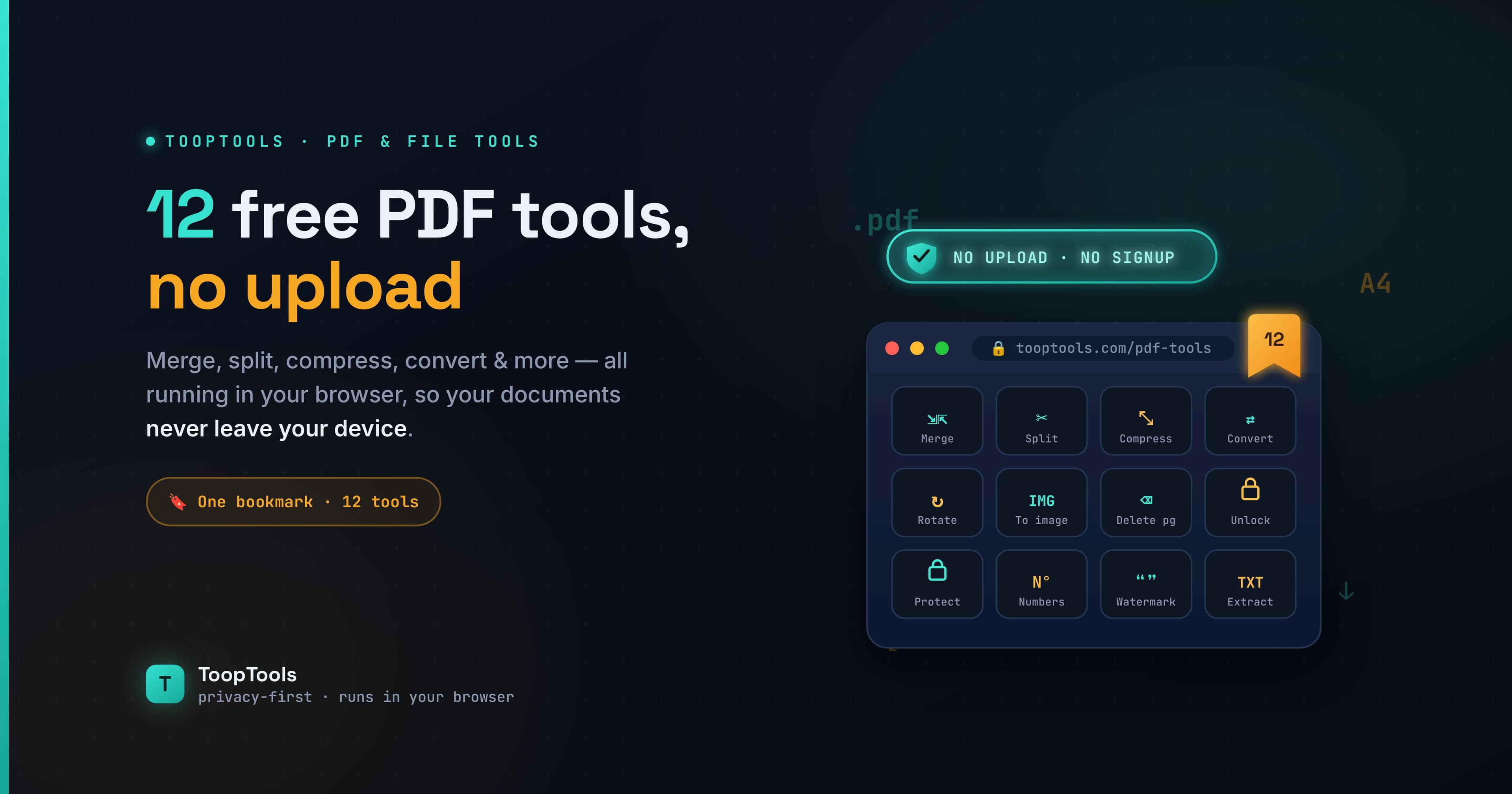
Sooner or later, everyone has to wrangle a PDF. You need to merge a few into one, pull a single chapter out of a big report, shrink a file that's too large to email, rotate pages that got scanned sideways, or turn a stack of images into a single document. The tasks are simple — but the popular tools for doing them come with a catch most people never think about.
Almost every well-known online PDF service works by uploading your document to its servers, processing it there, and sending it back. For a meaningless test file, fine. But PDFs are exactly the kind of file that tends to hold sensitive material: contracts, invoices, bank statements, medical records, legal documents, signed agreements, ID scans. Uploading those to a third-party server — often one that keeps them for hours or longer — is a genuine privacy risk you take on without realizing it.
This is a list of 12 free PDF and file tools that do the same jobs entirely in your browser. Nothing is uploaded, nothing is stored, and your documents never leave your device. No signup, no software, no watermarks slapped on by the tool itself, and no daily task limits to nudge you toward a paid plan. Just open, do the task, and download the result.
Combine, split, and reorganize PDFs
1. PDF Merger
Combining several PDFs into one is the most common PDF task there is — stitching together a report, an application packet, or a set of invoices. A PDF merger lets you drop in multiple files, reorder them however you like, then merge and download a single document. Because it runs in your browser, you can combine confidential files without any of them touching a server.
2. PDF Splitter
The opposite job: pulling pages out of a larger PDF. A PDF splitter lets you extract a specific page range into a new file, or break every page into its own separate PDF bundled together as a ZIP. It's perfect for sharing just one section of a long document instead of the whole thing.
3. PDF Page Remover / Reorder
Sometimes you don't want to split a PDF, just clean it up. A PDF page manager lets you delete unwanted pages and drag the rest into a new order, with visual previews of each page so you can see exactly what you're doing before you download the edited file.
Convert PDFs to and from other formats
4. PDF to Image Converter
When you need a PDF page as an image — for a slide, a thumbnail, a preview, or somewhere PDFs aren't supported — a PDF to image converter turns pages into PNG or JPG files at the resolution you choose. A single page downloads directly; multiple pages arrive neatly as a ZIP.
5. Image to PDF Converter
Going the other way, an image to PDF converter turns one or many images into a single PDF, one image per page. You can size each page to match the image or fit everything to A4 — handy for turning a set of photos, scans, or screenshots into a tidy document to send or archive.
Optimize and inspect PDFs
6. PDF Compressor
A PDF that's too big to email or upload is a classic frustration, especially with scanned or image-heavy files. A PDF compressor shrinks large PDFs by rasterizing pages at an adjustable quality, and shows you how much size you've saved before you download. You get a file that actually fits the limit, without sending a sensitive scan to a stranger's server to do it.
7. PDF Info / Page Counter
Sometimes you just need the facts about a file. A PDF info tool instantly shows a PDF's page count, page size, file size, and metadata like title, author, and creation date — useful for checking a document against a page limit, confirming details, or seeing what information a file is quietly carrying.
Edit, protect, and extract from PDFs
8. PDF Page Rotator
Scanned pages so often come out sideways or upside down. A PDF page rotator lets you rotate pages individually or all at once, with live previews, then download the corrected document — a small fix that makes a messy scan instantly readable.
9. Add Watermark to PDF
Marking a document as a draft, confidential, or yours is easy with an add watermark to PDF tool. It stamps a diagonal text watermark across every page, with control over size, opacity, angle, and color — useful for protecting drafts, labeling copies, or branding a document before you share it.
10. Extract Images from PDF
Need the pictures out of a PDF rather than the text? An extract images from PDF tool pulls the embedded raster images out of a document and lets you download them individually or all together — handy for reusing graphics, recovering a photo, or grabbing figures from a report.
Work with ZIP archives too
11. ZIP File Creator
Bundling several files into one tidy archive makes them far easier to send and store. A ZIP file creator packages any set of files into a single ZIP archive right in your browser — fast, private, and with no upload, which matters when those files include anything you'd rather not hand to a server.
12. ZIP Extractor
And to open one, a ZIP extractor lets you open a ZIP archive in your browser, browse its contents, and download individual files — no unzipping software to install, and the archive's contents never leave your device.
Why "in your browser" matters more for PDFs than almost anything else
It's worth dwelling on the privacy point, because PDFs are a special case. Think about what you actually keep as PDFs: signed contracts, tax documents, pay stubs, medical letters, bank statements, legal filings, scanned IDs. These are some of the most sensitive files most people own — and the standard advice of "just use a popular online PDF tool" quietly involves uploading exactly those documents to a company's servers.
Where do they go? How long are they kept? Who can see them? With a server-based tool, you don't know, and you have to take the company's word for it. For a freelancer handling a client's contract, an HR team processing employee records, or anyone dealing with their own financial or medical paperwork, that uncertainty isn't acceptable.
Browser-based tools remove the question entirely. When the merging, splitting, compressing, and converting all happen in your browser, there's no upload and no server copy — the document is processed on your own machine and goes nowhere else. You can verify it the same way you'd check any web tool: open your browser's developer tools, switch to the Network tab, and run the tool. If your file isn't sent anywhere, the tab stays quiet. For documents this sensitive, that guarantee is the entire reason to choose a client-side tool.
A typical PDF workflow, all in one place
These tools shine when you chain them together. A common sequence: use the PDF info tool to check a file's page count, the page manager to delete the pages you don't need and reorder the rest, the merger to combine it with another document, the compressor to get it under an email size limit, and finally — if it's going out publicly — the watermark tool to mark it appropriately. Every step happens in the browser, so a confidential document moves through the whole pipeline without ever being uploaded.
Keeping these tools together also saves the constant hunting that PDF work usually involves. Instead of bouncing between several different websites (each wanting an upload), you can pin the PDF tools you use most into a single workspace alongside the rest of your everyday utilities, so the next time a PDF lands in your inbox, everything you need is already a click away.
Tips for working with PDFs more efficiently
A few small habits make PDF work faster and less frustrating.
Check before you edit. Run a file through the PDF info tool first to see its page count and size — it saves you from discovering halfway through that you're working on the wrong document or one that's far larger than expected.
Compress last, not first. If you're going to merge, split, or remove pages, do all of that before compressing. Compressing and then editing can mean compressing again, which stacks quality loss; finishing your edits first means you compress only once, at the end.
Reorder visually instead of by guesswork. When combining or rearranging pages, use the tools that show page previews. It's far easier to drag a thumbnail into place than to track page numbers in your head, and you'll catch mistakes before you download.
Keep your original. As with images, some PDF operations are one-way — compression in particular discards detail. Always keep the untouched original and work on a copy, so you can start over if a result isn't what you wanted.
Bundle related files into a ZIP. When you need to send several documents at once, a single ZIP is tidier and more reliable than a dozen separate attachments — and it keeps everything together for whoever's on the receiving end.
Build these into your routine and the usual PDF headaches mostly disappear, especially when the tools are all sitting in one place ready to use.
Frequently asked questions
Are these PDF tools really free?
Yes. Every PDF and file tool here is completely free, with no signup, no trial, and no usage limits — and no tool-applied watermark on your output (the watermark tool only adds one if you choose to).
Do I need to upload my PDF to use them?
No. These tools run entirely in your browser, so your PDF is processed on your own device and never uploaded to a server. That's the key difference from most popular online PDF services.
Is it safe to edit confidential PDFs online?
With these tools, yes — because nothing is uploaded. Your contracts, statements, and scanned documents stay on your machine the whole time. You can confirm nothing is sent by checking your browser's Network tab while you work.
Can I merge, split, and compress PDFs for free without software?
Yes. You can merge multiple PDFs, split or extract pages, and compress large files directly in your browser — no desktop software to install and no account to create.
Do these tools add a watermark to my files?
No, not unless you want one. Your output is clean. The only watermark tool here is the dedicated "Add Watermark to PDF," which stamps a watermark only when you choose to use it.
What's the largest PDF I can work with?
Because processing happens in your browser, very large files depend on your device's memory rather than a server limit. Most everyday documents work without issue; extremely large, image-heavy PDFs may be slower on lower-powered devices.
PDFs carry some of the most sensitive files we own, which makes "where does my document go?" a question worth asking every time. With tools that run entirely in your browser, the answer is reassuringly simple: nowhere. Merge, split, compress, convert, rotate, watermark, and extract to your heart's content — free, with no signup, and with your documents staying exactly where they belong, on your own device. It's the same set of jobs the big online PDF services offer, minus the upload, the wait, and the quiet question of what happens to your files afterward.
Keep reading
- June 26, 2026We Value Your Time, So We Built Free Online Tools That Give Every Minute BackYour time is precious, and we know every moment matters. That's why we built 200+ fast, free online utility tools you can use in seconds — all in one place, all private — so you spend less time on busywork and more on what counts.
- June 26, 2026How to Format and Validate JSON Online (Without Sending It to a Server)Learn how to format, validate, and fix JSON online — beautify minified JSON, catch common errors, and do it all in your browser so your API data never touches a server.
- June 26, 2026How to Create a Strong Password in 2026 (and the Mistakes Everyone Makes)Learn how to create a strong password that's actually hard to crack — why length beats complexity, how to build a memorable passphrase, the mistakes to avoid, and how to check your password privately.