How to Create a Free QR Code That Never Expires (URL, Wi-Fi, Text & More)
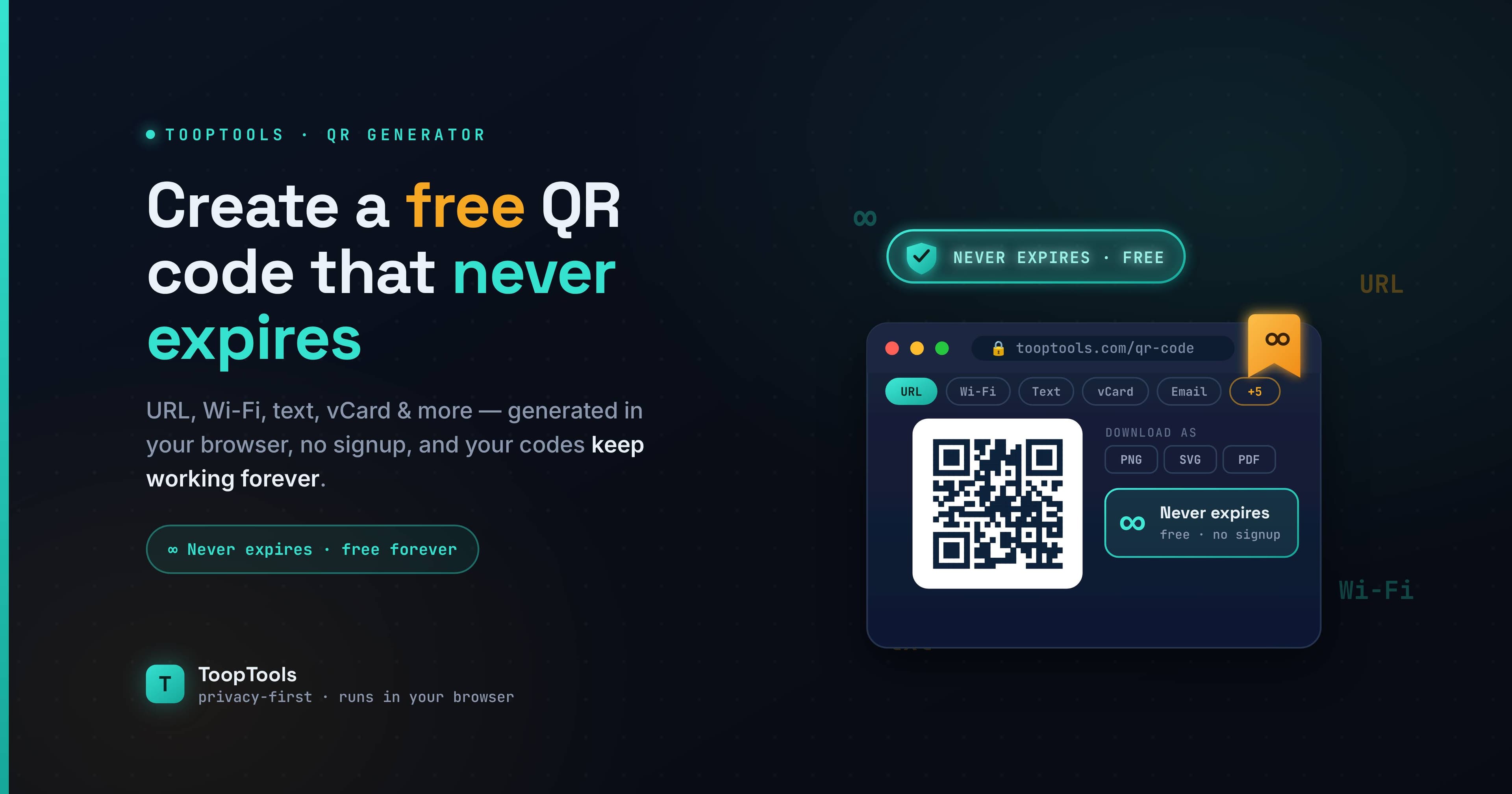
QR codes are everywhere now — on restaurant tables, product packaging, business cards, posters, event tickets, and the corner of half the ads you walk past. They're a genuinely useful little bridge between the physical world and the digital one: point a phone camera at a small square of dots, and you're instantly taken to a website, connected to Wi-Fi, or handed someone's contact details.
Making one is easy. But there's a catch that catches a lot of people out: many "free" QR code generators create codes that quietly stop working, or that track everyone who scans them. Print a thousand flyers with one of those, and you may find your code dead a month later — or discover that a third party has been logging every single scan.
This guide explains how to create a free QR code the right way: one that's truly free, never expires, and isn't spying on the people who scan it. We'll cover the crucial difference between static and dynamic codes, walk through making one step by step, and look at the different types of QR codes you can generate.
First, the thing nobody tells you: static vs dynamic QR codes
Almost every problem people run into with QR codes comes down to this one distinction.
A static QR code has your information encoded directly into the pattern of the dots. If you make a static QR code for a website address, that address literally is the code. Nothing sits between the scanner and the destination, which means there's no server that can go down, no subscription that can lapse, and no expiry date. A static code works forever, exactly as you made it.
A dynamic QR code is different. Instead of encoding your destination directly, it encodes a short redirect link that points to the generator's server, which then forwards the scanner to your real destination. This is how some services offer "editable" QR codes and scan analytics — but it comes with strings attached. Because the code depends on that middleman server, it can stop working if the service shuts down, changes its terms, or moves you to a paid plan. And because every scan passes through that server, the company can track who scanned, when, and where.
Many "free" QR code generators hand you a dynamic code on a free trial, then start charging — or simply deactivate the code — once the trial ends. That's the trap. For most everyday uses, what you actually want is a plain static code that encodes your data directly and belongs entirely to you.
How to create a free QR code, step by step
Making a static QR code that never expires takes about thirty seconds.
- Open a QR code generator. Use one that creates static codes directly in your browser, like the QR code generator on ToopTools. Because it runs client-side, your data is turned into a code on your own device — nothing is sent to a server and nothing is tracked.
- Choose what the code should contain. A website URL is the most common, but you can also encode plain text, Wi-Fi credentials, an email address, a phone number, or contact details.
- Enter your information. Type or paste the URL, text, or details you want the code to hold.
- Generate and download the code. The QR code appears instantly. Download it as an image and you're done — that image is now a permanent, self-contained code you can use anywhere.
- Test it before you use it. Open your phone camera and scan the code to confirm it goes where it should. Always do this before printing anything.
That's the whole process. No account, no subscription, and a code that keeps working for as long as the thing it points to exists.
Types of QR codes you can make
A QR code can hold far more than just a web link. Here are the most useful types and when you'd reach for each.
URL / website. The classic use — encode any web address so people can open it without typing. Great for linking a poster to a landing page, a package to a product page, or a slide to a resource.
Plain text. Encode a short message, a code, or instructions that appear right on the scanner's screen. Useful for things like a serial number, a coupon code, or a quick note on a label.
Wi-Fi. This one's a quiet favorite. Encode your network name and password into a Wi-Fi QR code, print it, and guests can connect just by scanning — no more reading a long password aloud or typing it on a tiny keyboard. Perfect for homes, cafes, offices, and rentals.
Email. Encode an email address (optionally with a subject line) so scanning opens a pre-addressed message. Handy on business cards and contact pages.
Phone number. Encode a number so scanning prompts a call. Useful for service businesses, support lines, and signage.
Contact details (vCard). Encode your name, phone, email, and other details so someone can save you to their contacts in one tap — the modern business card.
Whichever type you choose, encoding the data directly into a static code means it works offline on the scanner's side too: once scanned, the information is right there, with no need to reach a server first.
Why "never expires" and "no tracking" actually matter
It's easy to dismiss this as a technicality, but it has real consequences.
Expiry can be expensive and embarrassing. Imagine printing menus, packaging, signage, or a print-run of flyers, only to have the QR codes go dead because a "free" dynamic code lapsed. You can't recall the printed materials. A static code removes that risk entirely — it can't expire, because there's no server it depends on.
Tracking is a privacy issue for the people you serve. When a code routes through a middleman, that company can log every scan: roughly where the scanner is, what device they used, and when. Your customers, guests, or audience didn't agree to that. A static code points straight to the destination with no one watching in between, which is both more private and more honest.
There's a place for dynamic codes — if you genuinely need to edit a destination after printing, or you specifically want scan analytics and are transparent about it, they can be worth the trade-offs. But for the vast majority of everyday uses, a static code that's free, permanent, and private is simply the better default.
Where to use QR codes (ideas worth stealing)
If you've only ever used QR codes for menus, there's a lot more you can do with them. Link a product to its instructions or warranty registration. Put one on your business card that saves your contact details instantly. Add a Wi-Fi code to a framed card by your front door for guests. Drop one on a presentation slide so the audience can grab your resources without squinting at a URL. Connect a poster, sticker, or shop window to a sign-up page or your latest content. Print one on packaging that leads to a how-to video. Because static codes never expire, you can commit them to print with confidence.
Tips for QR codes that actually scan
A QR code is only useful if it reads reliably. A few practical pointers:
Keep good contrast — dark code on a light background scans best, and low-contrast or busy backgrounds cause failures. Don't shrink it too small; on print, aim for at least about an inch (2.5 cm) square, and larger if it'll be scanned from a distance. Leave a bit of quiet space (a margin) around the code so the camera can find its edges. Avoid stretching or distorting the image, which breaks the pattern. And always, always test the final version — scan it from a phone before you print or publish, ideally on more than one device.
A note on privacy
It's worth choosing a QR generator that does its work in your browser rather than on a server. When the code is generated client-side, the data you encode — which might be your home Wi-Fi password, a private link, or your personal contact details — never leaves your device. You can confirm this the same way you'd check any web tool: open your browser's developer tools, switch to the Network tab, and generate a code. If nothing is sent, your information stayed with you. That's the approach the QR code generator here takes, and for something as personal as a Wi-Fi password or a vCard, it's the sensible default.
Common QR code mistakes to avoid
A few avoidable errors trip people up again and again. Knowing them in advance saves a reprint — or a dead campaign.
The biggest one is using a dynamic "free trial" code for something permanent. If you're printing the code, putting it on a product, or expecting it to last, use a static code. Trial-based dynamic codes are the number-one reason QR codes mysteriously stop working weeks later.
Another is not testing the final version. A code that scans fine on the screen can fail in print if it's too small, too low-contrast, or distorted. Always scan the actual final asset — the printed flyer, the exported graphic — not just the preview, and test it on more than one phone.
People also forget the destination has to stay live. A static code points wherever you told it to; if that page later moves or comes down, the code still works but lands on a dead link. Keep the destination stable, or point the code at a URL you control and won't change.
Finally, don't over-design it into oblivion. Heavy logos, gradients, or color schemes layered over a code can push it past what scanners can read. A little styling is fine; just test thoroughly, and keep strong contrast between the code and its background.
Frequently asked questions
How do I create a free QR code?
Open a QR code generator, choose what the code should contain (a URL, text, Wi-Fi details, and so on), enter your information, and download the generated image. Using a tool that makes static codes in your browser means it's free, permanent, and private.
Do free QR codes expire?
Static QR codes never expire, because your data is encoded directly into the code. Dynamic QR codes can expire or be deactivated, since they rely on a third-party server — which is why some "free" generators eventually stop your code from working.
What's the difference between a static and dynamic QR code?
A static code encodes your information directly into the pattern, so it works forever and isn't tracked. A dynamic code encodes a redirect through the generator's server, which allows editing and analytics but can expire and logs every scan.
Can I make a QR code for my Wi-Fi?
Yes. Enter your network name and password, and the tool builds a Wi-Fi QR code. Anyone who scans it can connect automatically, without you sharing the password manually.
Are QR codes free to use commercially?
Static QR codes you generate are free to use anywhere — on products, packaging, posters, and business cards — for personal or commercial projects, with no fees.
Is it safe to put a Wi-Fi password into a QR generator?
It is if the generator runs entirely in your browser, because your password is encoded locally and never uploaded. Check the Network tab if you want to confirm nothing is sent.
QR codes are one of those small technologies that just work — as long as the code you made is truly yours. Stick to static codes from a free, browser-based generator, test them before you commit them to print, and you'll have codes that keep working for years, point exactly where you intend, and quietly respect the privacy of everyone who scans them.
Keep reading
- June 26, 2026We Value Your Time, So We Built Free Online Tools That Give Every Minute BackYour time is precious, and we know every moment matters. That's why we built 200+ fast, free online utility tools you can use in seconds — all in one place, all private — so you spend less time on busywork and more on what counts.
- June 26, 202612 Free PDF Tools That Work Entirely in Your Browser (No Upload, No Signup)Merge, split, compress, convert, and edit PDFs with 12 free PDF tools that run entirely in your browser — no upload, no signup, and your documents never leave your device.
- June 26, 2026How to Format and Validate JSON Online (Without Sending It to a Server)Learn how to format, validate, and fix JSON online — beautify minified JSON, catch common errors, and do it all in your browser so your API data never touches a server.