How to Compress an Image Without Losing Quality (Free, in Your Browser)
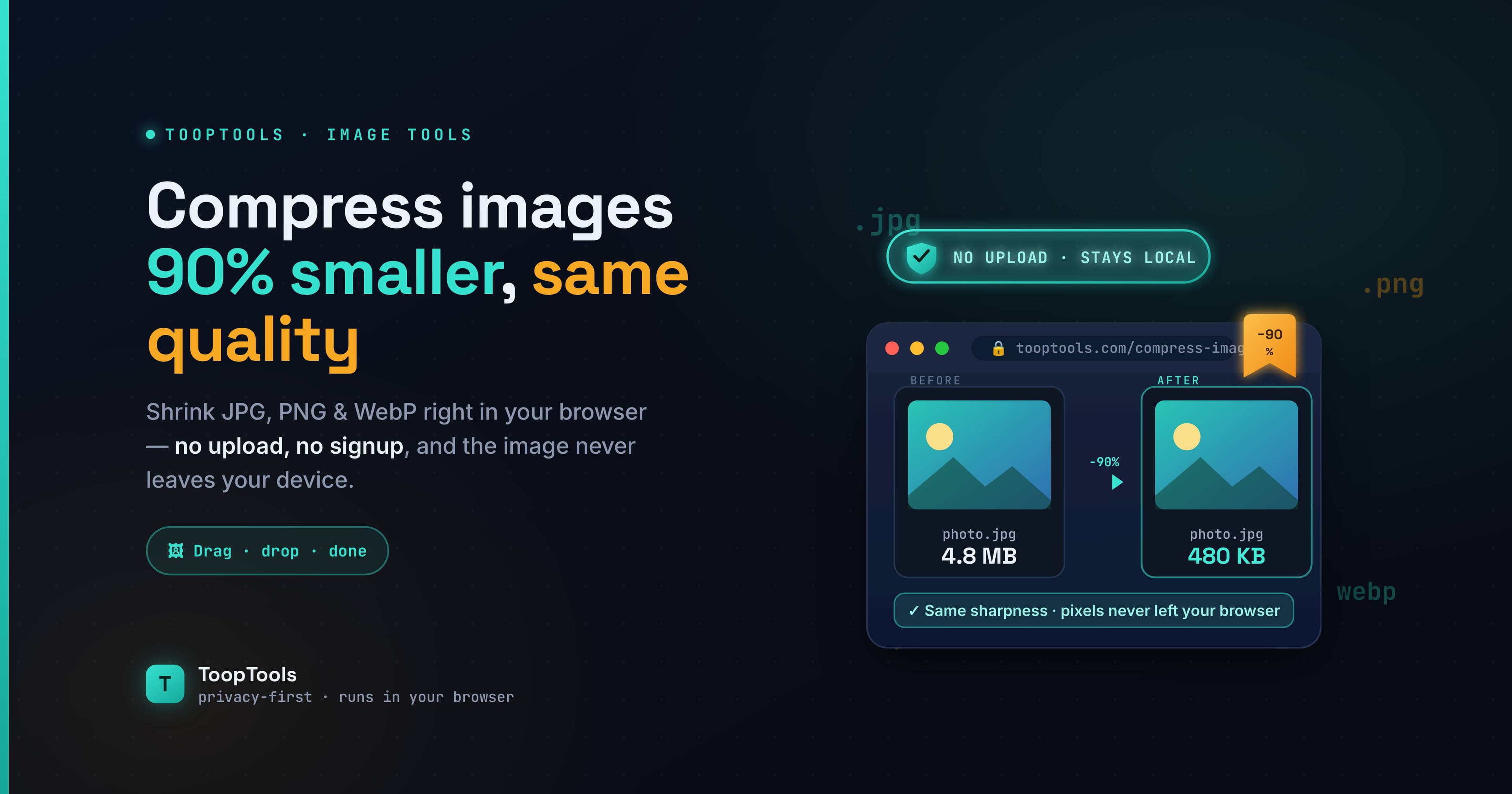
Big image files are one of those quiet annoyances that slow everything down. A photo straight off a phone or camera can easily be several megabytes — fine on your hard drive, but a problem the moment you try to attach it to an email, upload it to a website, or post it somewhere with a size limit. Oversized images make web pages crawl, eat your storage, and occasionally just refuse to upload at all.
The fix is image compression: shrinking a file's size so it's quicker to send, store, and load. The worry, of course, is quality — nobody wants a crisp photo turned into a blurry, blocky mess. The good news is that with the right approach you can dramatically cut file size while keeping an image that looks, to the naked eye, exactly the same.
This guide explains how to compress an image without losing visible quality — what's actually happening under the hood, how to pick the right format, and how to do it for free in your browser without uploading your photos to anyone's server. By the end you'll know how to shrink almost any image to a fraction of its size while keeping it looking exactly as sharp as the original.
What image compression actually does
When you compress an image, you're reducing the amount of data needed to store it. There are two broad ways to do that, and knowing the difference is the key to keeping quality.
Lossless compression shrinks the file without throwing away any image data at all — the compressed image is pixel-for-pixel identical to the original, just stored more efficiently. The trade-off is that the size reduction is modest. Lossless is what you want when every detail must be preserved exactly, such as for logos, line art, or images with sharp text.
Lossy compression achieves much smaller files by selectively discarding data the human eye is least likely to notice — subtle color variations and fine detail in busy areas. Done gently, the result looks identical to the original while being a fraction of the size. Pushed too far, you start to see artifacts: blockiness, fuzzy edges, and banding in smooth gradients. The art of compressing "without losing quality" is really about finding the sweet spot where the file is small but the loss is invisible.
For most photos, a well-judged lossy compression is the answer: it can cut file size by 70–90% with no difference you'd ever spot on screen.
How to compress an image, step by step
The process itself is quick.
- Open an image compressor. Use one that works in your browser, like the image compressor on ToopTools, so your photo is processed on your own device rather than uploaded somewhere.
- Add your image. Drop in the JPEG, PNG, or other image you want to shrink.
- Let it compress, and check the result. A good compressor reduces the file size while keeping the image looking sharp. Compare the before-and-after size to see how much you've saved.
- Download the compressed image. Save the smaller file, and it's ready to upload, email, or post.
That's it — no account, no software to install, and the whole thing happens in seconds.
JPEG vs PNG vs WebP: which format to use
Choosing the right format matters almost as much as the compression itself, because each format is built for a different kind of image.
JPEG is the workhorse for photographs and any image with lots of colors and gradients — sunsets, portraits, complex scenes. It uses lossy compression very efficiently, so photos end up small while still looking great. The downside: it doesn't support transparency, and it's not ideal for sharp edges or text, where it can introduce fuzziness.
PNG is the right choice for graphics with sharp edges, flat colors, text, or transparency — logos, icons, screenshots, and illustrations. It's lossless, so those crisp edges stay crisp, but files are larger than JPEG for photographic content. Use PNG when you need transparency or pixel-perfect detail, not for full-color photos.
WebP is the modern option that often beats both. It supports lossy and lossless compression, handles transparency, and typically produces smaller files than JPEG or PNG at the same visible quality. It's widely supported in browsers today, which makes it an excellent choice for images on websites where load speed matters.
A simple rule of thumb: photos → JPEG (or WebP); graphics, logos, and anything with transparency → PNG (or WebP); building a fast website → consider WebP for almost everything.
How to compress without losing visible quality
Keeping quality high while shrinking the file comes down to a few practical habits.
Resize before you compress. This is the single biggest win people miss. If you're going to display an image at 1,200 pixels wide, there's no point uploading one that's 6,000 pixels wide — you're storing four times the data for no visible benefit. Scale the image down to the dimensions you'll actually use first, and the file gets dramatically smaller before compression even starts.
Compress to the context, not to the extreme. An image for a website can be compressed more aggressively than one you'll print. Match the level of compression to where the image will live, and don't crank it so hard that artifacts appear.
Check the result at full size. Always view the compressed image at the size it'll be displayed before committing. If it looks clean there, you've found your sweet spot; if you can see blockiness or fuzziness, ease off.
Keep your original. Compression is one-way for lossy formats — you can't recover the discarded detail later. Always keep the untouched original somewhere, and compress copies.
When (and why) you should compress images
There are a handful of moments where compressing first saves real headaches.
For websites and SEO, image size is a major factor in how fast a page loads, and page speed affects both user experience and search rankings. Compressed images are one of the easiest ways to make a site noticeably faster.
For email, attachments often bounce or get rejected over size limits. A compressed photo slips through where the original wouldn't.
For uploads with size caps — job applications, forms, marketplaces, social platforms — compression gets your image under the limit without you having to crop or settle for a worse photo.
And for storage, compressing a large library of images can reclaim a surprising amount of space on a drive or in cloud storage.
Why compressing in your browser matters
It's worth choosing an image compressor that works in your browser rather than uploading your photos to a server. The images you compress are often more personal than you'd think: family photos, unpublished work, product shots, or a client's confidential assets. A lot of free compression tools upload your file to process it, which means a copy lands on a server you don't control.
A browser-based compressor avoids that completely. Because the work happens on your own device, your image is never uploaded, stored, or seen by anyone else — you get the smaller file without handing over the original. If you want to confirm it, open your browser's developer tools, switch to the Network tab, and compress an image; if nothing is sent, your photo stayed with you. For anything private or client-owned, that guarantee is worth seeking out.
Beyond compression: other image tasks worth doing in your browser
Compression is usually one step in a larger image workflow, and the same browser-based, privacy-first approach applies to the rest of it.
Before you compress, you'll often want to crop or resize — and if the image is destined to be a profile picture, an avatar cropper frames it to the right shape and size so it looks intentional rather than awkwardly cut off. Cropping out the parts you don't need also reduces the file size before you even reach the compression step.
If you're publishing original photos or graphics, consider an add watermark tool to overlay your name or logo before the image goes public — a simple way to keep your brand attached as content spreads and to discourage others from passing your work off as their own. Watermark first, then compress the final version.
The order that usually works best is: crop to what you need, add a watermark if it's going public, then compress and export. Doing all of it in the browser means that at no point does your image — which might be an unreleased shot or a client's asset — get uploaded to a server. The whole pipeline stays on your device, start to finish, which is exactly what you want when the images matter.
This is also where keeping your tools together pays off: when your cropper, watermarker, and compressor all live in one workspace, prepping an image for the web becomes a quick, repeatable routine instead of a hunt across three different websites.
Common mistakes to avoid
A few errors undo the benefits of compression. Don't compress an image more than once through lossy formats — re-compressing an already-compressed JPEG stacks the quality loss and introduces visible artifacts; always go back to the original. Don't pick the wrong format, like saving a logo as a JPEG (fuzzy edges) or a photo as a PNG (huge file). Don't upload a giant image and rely on the website to "resize" it for display — the browser still has to download the full file, so the page stays slow; resize and compress first. And don't forget to keep your originals, since lossy compression can't be undone.
Frequently asked questions
How do I compress an image without losing quality?
Use lossy compression at a moderate level, and resize the image to the dimensions you'll actually display first. A good image compressor shrinks the file while keeping it looking sharp to the naked eye — the goal is the point where the file is small but the loss is invisible.
Can I compress an image for free?
Yes. A browser-based image compressor lets you shrink images for free with no signup and no software, and because it runs on your device, your photos are never uploaded anywhere.
What's the difference between lossy and lossless compression?
Lossless compression keeps every pixel identical but reduces size only modestly. Lossy compression discards data the eye is unlikely to notice for much smaller files; done gently it looks identical, but pushed too far it creates visible artifacts.
Which image format is smallest?
WebP is usually the smallest at a given quality, beating both JPEG and PNG in most cases. For photos, JPEG is a strong traditional choice; for graphics and transparency, PNG; WebP often works well for everything, especially on the web.
Is it safe to compress private photos online?
It is if the tool runs entirely in your browser, because your image is processed locally and never uploaded. Check the Network tab to confirm nothing is sent before compressing anything sensitive.
Will compressing reduce the image's dimensions?
Not necessarily — compression reduces file size, while resizing reduces dimensions. For the best results, resize to the size you'll use and then compress; the two together produce the smallest file.
Compressing images well is one of the highest-value, lowest-effort habits you can build — faster websites, smoother uploads, lighter inboxes, and more free storage, all without your photos looking any worse. Resize to the size you need, pick the right format, compress to the sweet spot, and do it in your browser so your originals stay yours. A few seconds of work, and your images are ready to go anywhere — looking just as good as they did before, at a fraction of the size.
Keep reading
- June 26, 2026How to Format and Validate JSON Online (Without Sending It to a Server)Learn how to format, validate, and fix JSON online — beautify minified JSON, catch common errors, and do it all in your browser so your API data never touches a server.
- June 26, 2026How to Create a Strong Password in 2026 (and the Mistakes Everyone Makes)Learn how to create a strong password that's actually hard to crack — why length beats complexity, how to build a memorable passphrase, the mistakes to avoid, and how to check your password privately.
- June 26, 2026How to Create a Free QR Code That Never Expires (URL, Wi-Fi, Text & More)Learn how to create a free QR code that never expires — for a URL, Wi-Fi, text, and more. Understand static vs dynamic codes, why some free QR codes stop working, and how to make ones that don't.