Are Free Online Tools Safe? How to Tell If One Is Sending Your Data Away
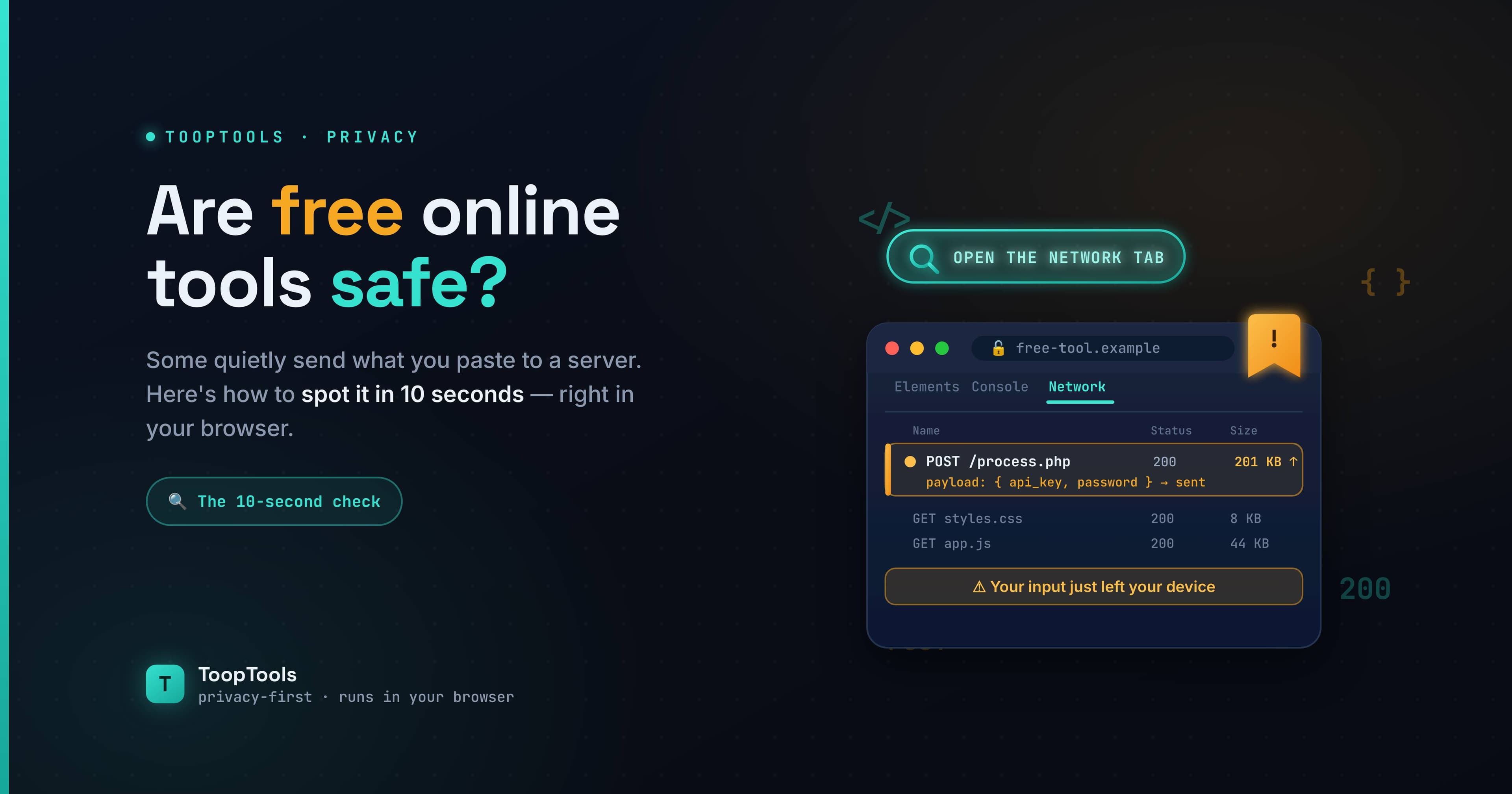
We all do it. You need to format some JSON, count the words in an essay, generate a password, compress an image, or convert a file from one format to another. So you search for a free online tool, find one, paste your data in, and move on with your day.
It's such a small, routine action that almost nobody stops to ask the question that actually matters: where did that data just go?
For a surprising number of "free online tools," the honest answer is to someone else's server. And if the thing you pasted happened to contain an API key, a password, a client's personal information, or an internal document, you may have just handed it to a website you know nothing about — run by people you'll never meet, stored for reasons you'll never be told.
This isn't a reason to panic, and it isn't a reason to stop using online tools, which are genuinely useful. But it is worth understanding how they work, why some are safe and some aren't, and how to tell the difference in about ten seconds. That's what this guide is for.
How online tools actually work
There are two fundamentally different ways any online tool can process the data you give it, and the difference is the whole story.
Server-side tools send your data away. When you paste your text and hit a button, your browser packages up that input and ships it to the tool's backend — a server somewhere on the internet. That server does the work and sends the result back. It's a perfectly normal way to build a web app, but it has one unavoidable consequence: your raw data left your computer and touched a system you don't control. What that server does with it next — whether it logs it, caches it, stores it, or analyzes it — is entirely up to whoever runs the site, and you have no way to know.
Client-side tools keep your data with you. Here, all the work happens inside your own browser, using JavaScript that runs on your machine. Your data is never sent anywhere because it never needs to be. The "tool" is really just code that executes locally, and the result appears without a single byte of your input leaving your device.
From the outside, these two approaches can look identical. You paste, you click, you get a result. That's exactly why the risk is so easy to ignore — the difference is invisible unless you go looking for it.
Why this matters more than people think
For a random string of test data, none of this matters. But think about what people actually paste into free online tools all day long:
- API responses that still contain access tokens or bearer keys
- Configuration files with database credentials and secrets
- Spreadsheets and documents holding customer names, emails, and other personal data
- Source code from private repositories
- Passwords, when "checking how strong they are"
- Contracts, medical information, financial details, and other sensitive documents
Pasting any of that into a server-side tool is, in plain terms, a data leak. Not a dramatic movie-style hack — just a quiet one you performed on yourself without realizing it. In a personal context that might mean exposing your own private information. In a professional context, it can be a genuine compliance violation: regulations like GDPR and HIPAA, and standards like SOC 2, exist precisely because sending sensitive data to unvetted third parties is a real risk with real consequences.
The frustrating part is that you usually can't tell a safe tool from a risky one just by looking at the page. A clean, professional design tells you nothing about what happens to your data behind the scenes. Fortunately, you don't have to guess.
How to check in 10 seconds
Your browser already knows whether a tool sent your data anywhere, and it will tell you if you ask. Here's the method, step by step:
- Open the tool's page.
- Open your browser's developer tools — press
F12, or right-click anywhere and choose Inspect. - Switch to the Network tab.
- Clear the list (there's usually a small clear icon), then paste your data and run the tool.
Now watch what happens. If the Network tab stays empty when you process your data, the tool is client-side — nothing was sent anywhere. If you see a request fire off carrying your input, that data just left your machine for a server.
That's the entire test. One glance at the Network tab and you know exactly what kind of tool you're dealing with. It costs you ten seconds, and it's the single most reliable way to protect yourself, because it doesn't rely on trusting anyone's marketing claims — you're reading the truth directly from your own browser.
Make this a habit specifically for the moments that matter: any time you're about to paste something you wouldn't want logged on a stranger's server, check first.
Other warning signs to watch for
The Network tab is the definitive test, but a few softer signals are worth noticing too.
Does it ask you to upload a file rather than process it in place? Uploading is, by definition, sending your file to a server. Some tasks genuinely require it, but for things that could happen locally — like reading a PDF's text or resizing an image — an upload step is a hint the work is happening server-side.
Does it require an account or email to use a simple tool? A login wall on a basic utility often means the site wants to associate your activity (and your data) with an identity. A genuinely simple tool rarely needs to know who you are.
Is it buried in ads and trackers? Heavy ad and tracker loads don't prove your tool data is being misused, but they tell you the site's business model is built on harvesting attention and behavior — which doesn't inspire confidence about how carefully they treat the rest of your data.
What does the privacy policy actually say? If a tool's privacy policy describes collecting, storing, or sharing the content you submit, believe it. If there's no privacy policy at all on a site handling sensitive input, treat that as a red flag rather than a reassurance.
What about tools that genuinely need a server?
It's worth being fair here, because not every server-side tool is careless or shady. Some tasks genuinely can't run entirely in your browser. Heavy video transcoding, certain advanced image or document conversions, anything powered by a large AI model, or features that check your input against a live external database all require real server-side processing — there's no way around it for those specific jobs.
The point isn't that server-side tools are evil. It's that you should make an informed choice. If a task truly needs a server, prefer a provider you actually trust, read what their privacy policy says about retention, and avoid feeding it your most sensitive material when you can help it. And critically: don't use a server-side tool for something that could have been done locally. There's no good reason to send a password, a snippet of private code, or a simple text conversion to a remote server when a client-side tool does the same job without your data ever leaving the room.
A useful mental model is to match the risk to the task. Low-stakes data and a job that needs a server? Fine — use the convenient option. Sensitive data and a job that could run locally? Insist on a client-side tool and verify it. The ten-second Network-tab check is what lets you tell, in the moment, which situation you're actually in.
The safer default: tools that physically can't leak your data
The cleanest way to avoid the whole problem is to favor tools that are built client-side from the start, so the question never even comes up. When the formatting, converting, hashing, or generating happens entirely in your browser, there's no server to log your data because there's no server in the loop at all. You're not trusting a promise; you're relying on the fact that the data never moves.
This is the principle ToopTools is built on. Every tool in its library runs entirely in your browser — so you can paste a JSON response full of tokens into the JSON formatter, test a real password in the password strength checker, or generate a credential with the password generator, and none of it is ever uploaded, logged, or stored. You can verify it with the exact Network-tab method described above; watching it stay empty is, in a sense, the entire point. There's no account to create and nothing to install — and you can pin the tools you use most into a personal workspace that stays just as private.
To be clear, ToopTools isn't the only option, and plenty of other client-side tools exist. The point isn't the brand — it's the principle: for anything sensitive, prefer tools that keep your data on your machine, and verify rather than assume.
A quick checklist before pasting sensitive data
Before you drop anything private into a web tool, run through this:
- Could this data hurt me or my organization if it leaked? If not, relax — convenience wins.
- If it could, open the Network tab and confirm the tool runs client-side.
- Be extra cautious with passwords, keys, customer data, and anything under a compliance requirement.
- Prefer tools that don't ask you to upload or sign in for simple tasks.
- When in doubt, choose a tool that explicitly runs in your browser — and check that it's telling the truth.
Ten seconds of awareness on the inputs that matter, and your sensitive data stays yours.
Frequently asked questions
Are free online tools safe to use?
Many are, but not all. The safety depends on whether the tool processes your data in your browser or sends it to a server. Client-side tools are safe even for sensitive data; server-side tools send your input somewhere you don't control. You can check which is which in your browser's Network tab.
How can I tell if an online tool is storing my data?
Open your browser's developer tools, go to the Network tab, and run the tool. If your input is sent in a network request, the tool's server receives it and may store it. If the Network tab stays empty, the tool ran locally and your data never left your device.
Is it safe to check my password strength online?
Only if the tool runs entirely in your browser. Some "how secure is my password" tools send your password to a server, which is risky. Use a client-side password strength checker so your password is analyzed locally and never transmitted.
What does "client-side" or "runs in your browser" mean?
It means the tool does its work using code that executes on your own device, rather than on a remote server. Because your data is processed locally, it isn't uploaded, logged, or stored anywhere — making client-side tools the safer choice for anything private.
Do client-side tools work offline?
Often, yes. Once the page has loaded, a purely client-side tool can keep working without an internet connection, since it doesn't need to contact a server to do its job.
Free online tools are one of the small conveniences that make working on a computer faster, and most of the time the trade-off is completely fine. But "free and online" doesn't automatically mean "private." The next time you're about to paste something you'd rather keep to yourself, take ten seconds to check where it's going — and when it matters, choose a tool that keeps it exactly where it belongs: with you.
Keep reading
- June 26, 2026We Value Your Time, So We Built Free Online Tools That Give Every Minute BackYour time is precious, and we know every moment matters. That's why we built 200+ fast, free online utility tools you can use in seconds — all in one place, all private — so you spend less time on busywork and more on what counts.
- June 26, 202612 Free PDF Tools That Work Entirely in Your Browser (No Upload, No Signup)Merge, split, compress, convert, and edit PDFs with 12 free PDF tools that run entirely in your browser — no upload, no signup, and your documents never leave your device.
- June 26, 2026How to Format and Validate JSON Online (Without Sending It to a Server)Learn how to format, validate, and fix JSON online — beautify minified JSON, catch common errors, and do it all in your browser so your API data never touches a server.