How to Build Your Own Free Online Tools Workspace (No Signup, 100% Private)
The video above walks through the whole process in under two minutes. The guide below explains every step in detail — so whether you prefer to watch or read, you'll know exactly how to turn a pile of scattered tool sites into one personalized workspace that's genuinely yours.
If you work on a computer for a living — or even just for fun — you almost certainly rely on a small army of free online tools. A JSON formatter here, a word counter there, a password generator, a color picker, a unit converter, an image compressor. Each one lives on a different website, each site looks different, and most of them are slower and more cluttered than they need to be.
So you bookmark them. Then you bookmark more. Before long your bookmarks bar is a graveyard of half-remembered links with names like "JSON tool (the good one)" and "that site that counts words." When you actually need one, you either dig through folders or give up and Google it again — landing back on a page full of ads, waiting for it to load, and pasting your data into a site you know nothing about.
There's a better way to work, and that's exactly what a personalized online tools workspace is built for. Instead of treating every utility as a separate destination, you bring the tools you actually use into one place, arrange them the way you like, and keep them a single click away. This guide shows you how to do that with ToopTools — step by step, with no account, no installation, and nothing ever uploaded to a server.
What is an online tools workspace?
Most "free online tools" websites are really just directories: a long list of utilities you scroll through, click into, use once, and forget. They're useful, but they're not yours. Every visit starts from scratch.
A tools workspace flips that model. Think of it less like a directory and more like a personal dashboard you assemble yourself. You browse a library of utilities — at ToopTools that's more than 200 free online tools spanning text and writing, web development, SEO, design, security, math, unit conversion, image editing, PDFs, and more — and you pin the ones you reach for most. Those pinned tools collect in your workspace, so the next time you sit down to work, your personal toolbox is already laid out and waiting.
The key difference is intent. A directory is organized for everyone. A workspace is organized for you. A front-end developer's workspace might be full of formatters, minifiers, and color tools; a writer's might hold a word counter, a case converter, and a readability checker; a marketer's might mix UTM builders, character counters, and QR generators. Same underlying library of online tools, completely different everyday experience.
The 30-second version
Open a tool → click Pin to Sidebar → repeat for the tools you love → open My Workspace. That's the whole system. Everything below is just detail.
Step by step: how to build your workspace
Here's the part the video demonstrates visually. If you'd rather read it, every step is broken down below in detail.
Step 1 — Find a tool you use often
Start from the All Tools page, where every utility is grouped into clear categories — Text & Writing, Web Dev & Coding, SEO & Social Media, Color & CSS Design, Security & Crypto, Math & Finance, Unit Converters, Image Tools, PDF & File Tools, and more. Browse a category to see what's available, or jump straight to what you want.
A great one to start with is the case converter — the kind of tiny tool you end up needing constantly:
Case Converter
Convert text between UPPER, lower, Title Case, camelCase, PascalCase, snake_case, kebab-case and more.
Open toolStep 2 — Open the tool and put it to work
Click into any tool and use it exactly as you normally would. Every utility on ToopTools works instantly, with no setup screen, no "create a free account to continue" wall, and no waiting. Paste your text, drop in your file, adjust the options, and you have your result.
This matters more than it sounds, because it's how you discover which tools deserve a permanent place in your workspace. A tool you genuinely enjoy using — one that's fast, does exactly one job well, and doesn't get in your way — is a tool you'll want one click away tomorrow.
Step 3 — Pin the tool to your sidebar
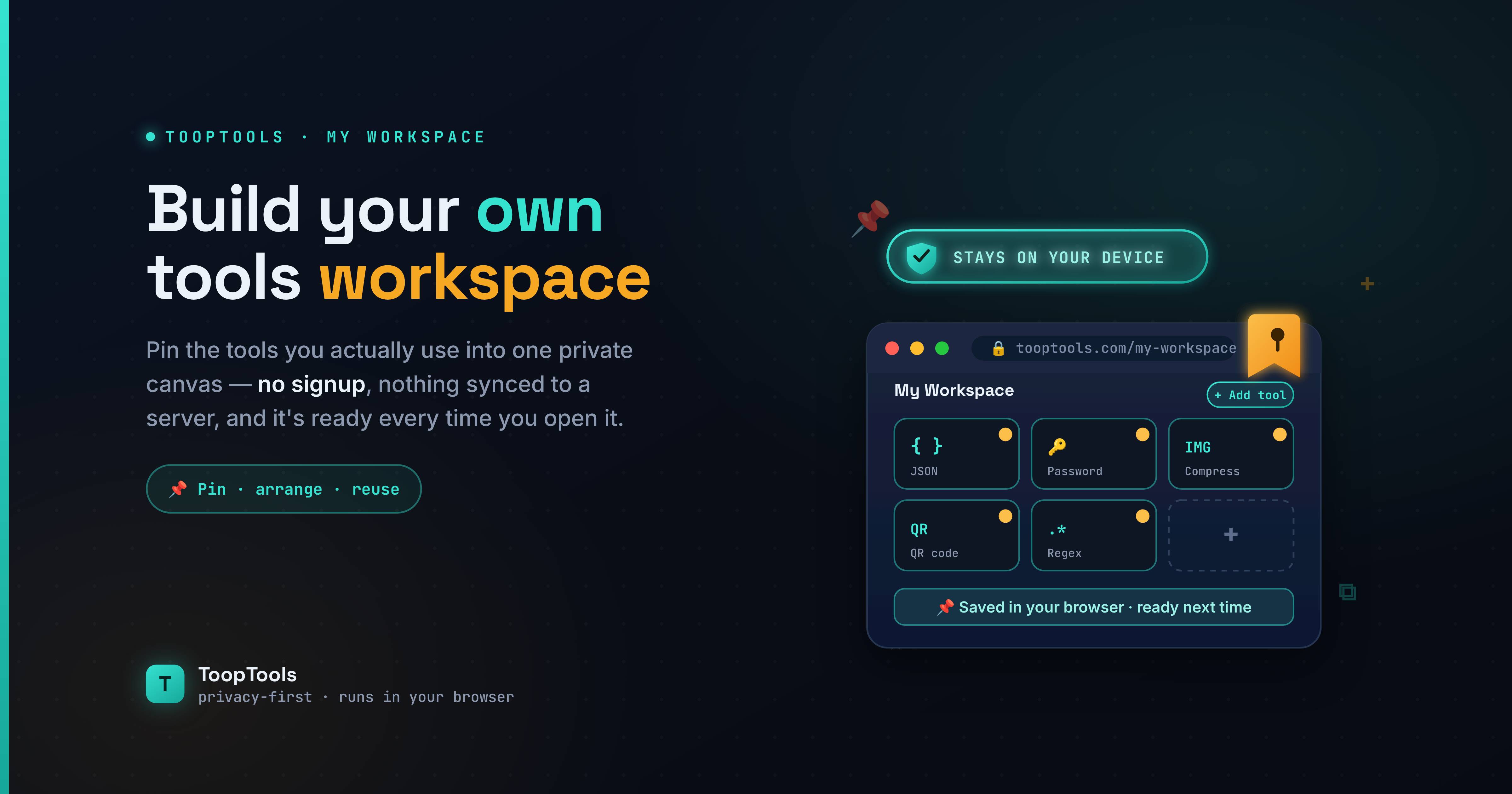
This is the move that turns a one-time visit into a lasting part of your toolbox. On any tool page you'll find a Pin to Sidebar button. Click it, and that tool is added to your personal workspace.
Pinning is the heart of the whole system. There's no limit that forces you to choose between your favorites at the start — pin as many as you find useful, and prune later if your sidebar gets crowded. Every pin you add makes your next work session a little faster.
Step 4 — Open your workspace
Once you've pinned a few tools, open My Workspace. This is your dashboard — every tool you've pinned, gathered in one place, each one a single click from being ready to use. No menus to dig through, no folders to expand, no re-Googling.
Step 5 — Arrange it to match how you work
A good workspace isn't just a pile of tools; it's an arrangement that fits your routine. Put the utilities you use most at the top. Group related tools together so the ones you tend to use in sequence sit side by side. As your projects change, your workspace can change with them — unpin what you've stopped using, pin the new tools a fresh project demands.
Why a workspace beats a folder full of bookmarks
It's fair to ask: why not just bookmark these online tools and be done with it? For a single occasional link, bookmarks are fine. But for tools you use every day, a workspace wins in several practical ways:
- Bookmarks scatter. They pile up across folders, get buried, and lose their context. A workspace only contains tools you deliberately chose to keep.
- Bookmarks send you away. Each click launches you to an external site that may have changed or filled with ads. Your workspace keeps everything in one consistent, fast, clean interface.
- Bookmarks don't understand grouping. Browser folders are clumsy. A workspace is built specifically for arranging the tools you use.
And most importantly: bookmarks are about finding a tool. A workspace is about using one.
Privacy: why everything runs in your browser
There's a quieter reason a workspace of browser-based tools is worth building: privacy.
A huge number of "free online tools" process your data on their servers. You paste in a chunk of JSON, a password, a client's spreadsheet — and that information leaves your machine and lands on a system you don't control.
Your data never leaves your device
Every tool on ToopTools runs entirely in your browser. There's no upload, no server-side logging, and nothing stored anywhere. Open your browser's developer tools, switch to the Network tab, and use any tool — you'll see nothing you typed gets sent anywhere. When you close the tab, it's gone.
That's why building a workspace here is genuinely safe for sensitive work. You can run private notes through a word counter, format an API response full of tokens, or compress a confidential image, all knowing the content stays on your own machine.
Who gets the most out of a personalized workspace
Almost anyone who works with text, code, data, or media can benefit, but a few groups feel the difference immediately:
| If you're a… | You'll probably pin… |
|---|---|
| Developer / engineer | JSON formatter, base64 encoder, hash generator, case converter |
| Writer / student | Word counter, character counter, case converter, text cleanup |
| Marketer / social media | Character counters, UTM & QR builders, text formatters |
| Designer | Color picker, gradient generator, CSS tools, image compressor |
The common thread is simple: if you use the same handful of online tools regularly, collecting them into one workspace removes friction you've probably stopped even noticing.
Frequently asked questions
Do I need an account to use the workspace?
No. There's no signup, no email, and no login required. You build your workspace simply by pinning tools, and you can start using any of the 200+ online tools immediately.
Is the workspace free?
Yes. Every tool and the workspace itself are completely free, with no trial, no paywall, and no usage limits.
Is my data private when I use these online tools?
Yes. Every tool runs entirely in your browser, so whatever you paste, type, or upload never leaves your device. You can confirm this yourself in your browser's Network tab.
Can I change my workspace later?
Absolutely. Pin new tools as your projects change, unpin the ones you've stopped using, and rearrange them whenever you like.
Building a workspace takes about thirty seconds to start and pays you back every time you sit down to work. Open a tool, pin the ones you love, and let your personal toolbox take shape around the way you work — fast, private, and finally all in one place.